Delete Your Data Without Deleting Your Account
Last updated: November 16, 2026
You can remove most of what you've put into GameVox yourself, and keep your account. Everything below takes effect right away. For anything you can't remove yourself, ask us and we'll delete it.
Want to delete everything instead? See Delete your account.
1. Messages and Attachments
You can delete any message you sent, in a server channel or a direct message. It is removed for everyone, together with the files attached to it.
Desktop and web
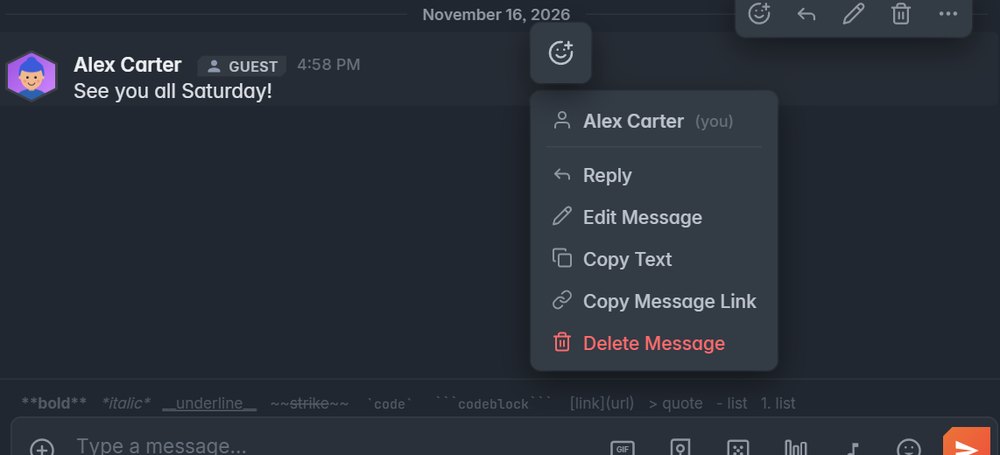
- Hover over your message and click the trash button, or right-click the message and choose Delete Message.
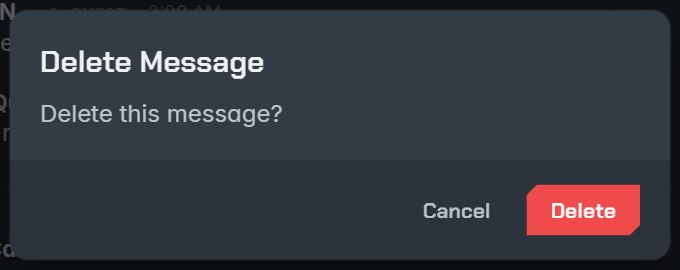
- Confirm with Delete. Hold Shift while clicking the trash button to skip the confirmation.
- To remove only one attachment and keep the text, use Remove Attachment on the file.
iPhone, iPad, Android and Amazon Fire
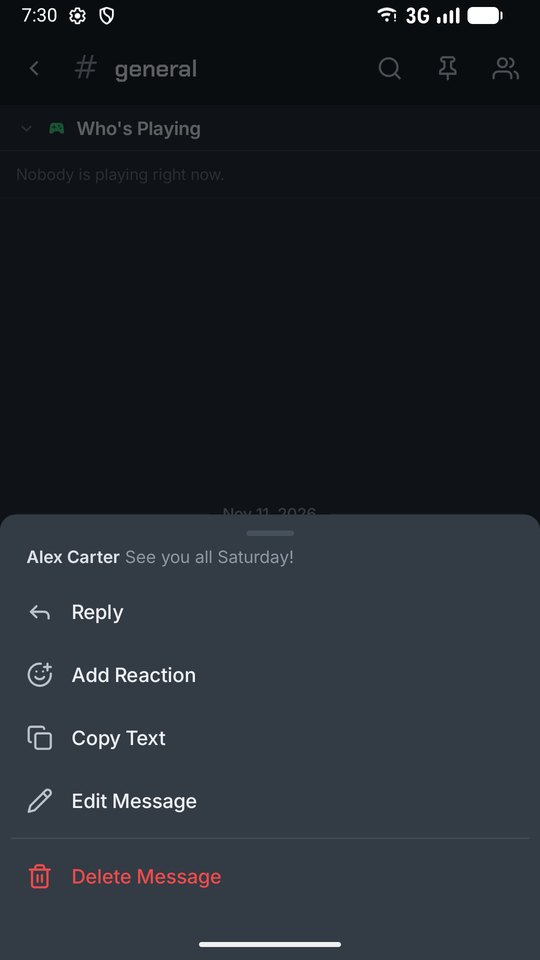
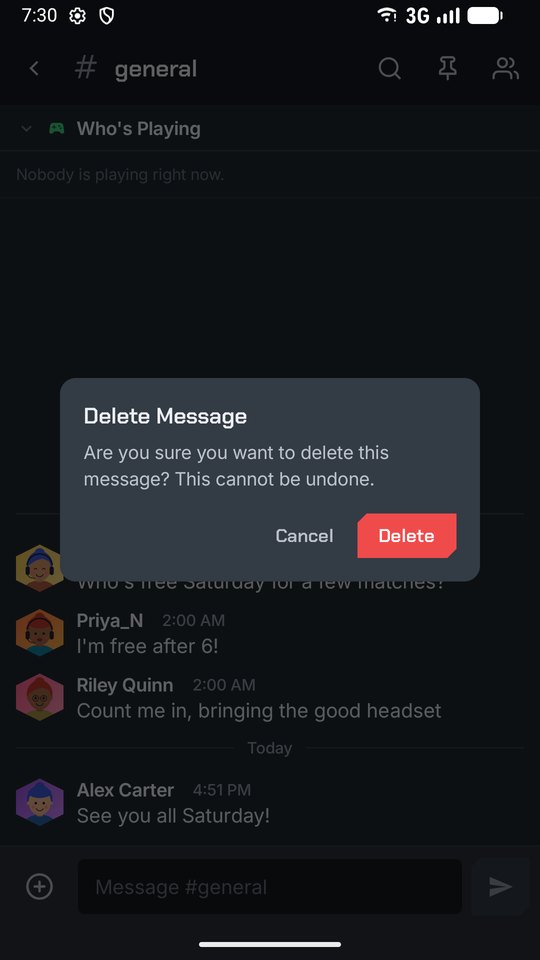
- Press and hold your message, tap Delete Message, then tap Delete.
2. Profile
- Profile pictures. Desktop and web: Settings > Account > Profile Picture, then the × on a saved picture. Phone: Settings > Profile, under saved profile pictures.
- Banner. Desktop and web: Settings > Account > Profile Banner > Remove Banner. Phone: Settings > Profile > Edit Profile, then Remove under the banner.
- Bio. Open Edit Profile (click your own picture on desktop, or Settings > Profile > Edit Profile on a phone), clear the bio and save.
3. Email Addresses and Phone Numbers
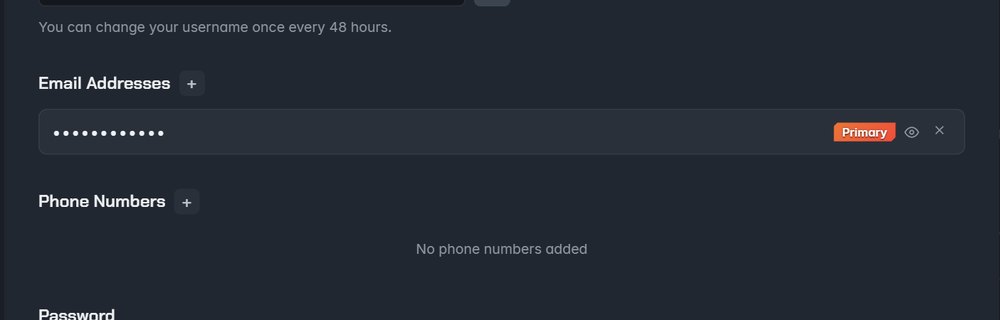
Desktop and web: Settings > Account, under Email Addresses or Phone Numbers, click the × next to the one to remove. Phone: Settings > Account > Emails or Phone Numbers. Removing a phone number asks for a code first, to make sure it's you.
4. Servers
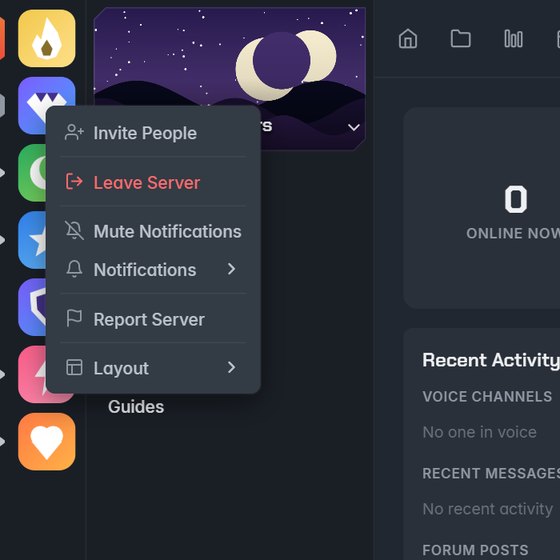
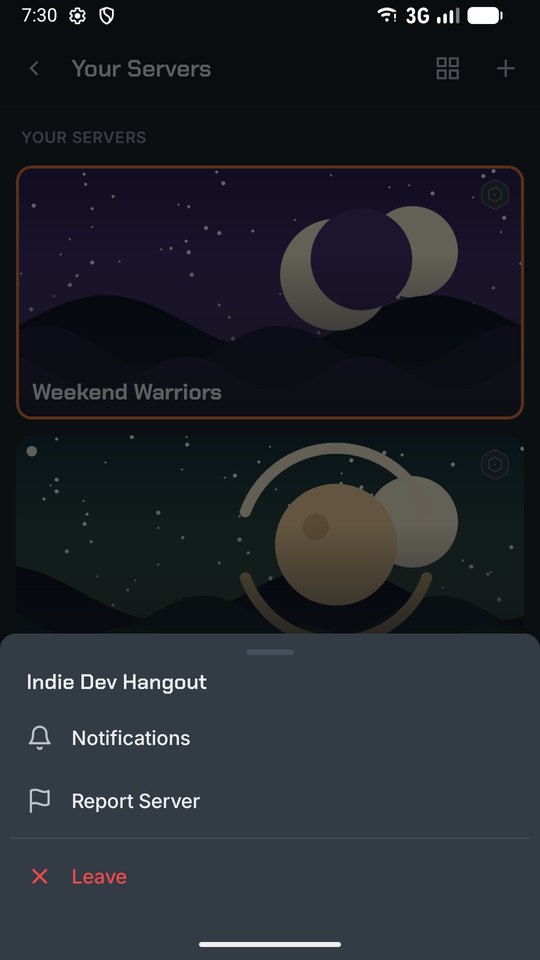
- Leave a server. Desktop and web: right-click the server's icon and choose Leave Server. Phone: press and hold the server and tap Leave. Your messages in the server stay unless you delete them first.
- Delete a server you own. In the same menu, or in Server Settings > Danger Zone, choose Delete Server and type
DELETEto confirm. This removes the server for all of its members.
5. Friends and Conversations
- Remove a friend. Desktop and web: right-click the friend and choose Remove Friend. Phone: open their profile and tap Remove Friend.
- Hide a conversation. Hide Conversation (desktop) or Hide conversation (phone, press and hold the conversation) removes it from your list. Hiding does not delete the messages; to delete them, delete your messages one by one.
6. Game History
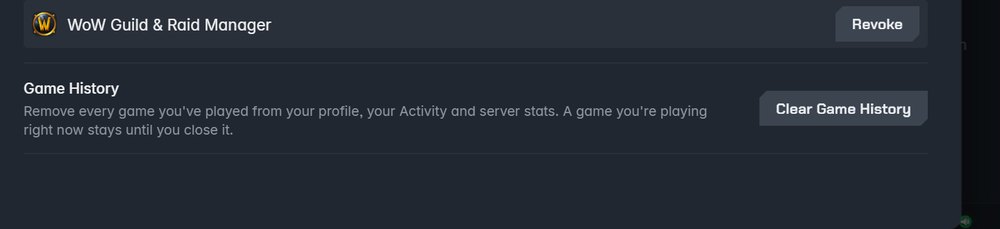
Desktop and web: Settings > Privacy & Security > Game History > Clear Game History removes every game you've played from your profile, your activity and server stats. On the same page you can stop sharing what you play.
7. Connected Accounts and Apps
- Game accounts. Desktop and web: Settings > Game Addons, then Remove next to a Steam or League of Legends account, or Unlink Battle.net.
- Apps and websites. Settings > Authorized Apps: Revoke takes away an app's access to your account.
8. Anything Else
To have other data deleted, such as login history, files you can't remove yourself or a copy of everything we hold about you, email support@gamevox.com from an email address on your account and tell us what you'd like removed. We'll confirm it's your account and delete it. Some information may be kept where the law requires it, as explained in our Privacy Policy.